Notes about the Polyeffects Beebo
The Polyeffects Beebo is many things:
- a multi effects box for synthesizers
- an amp simulation and effects pedal for guitar and bass
- a polyphonic synthesizer
- a modular synthesizer in a box
- a loop station
One thing it is not:
- well documented
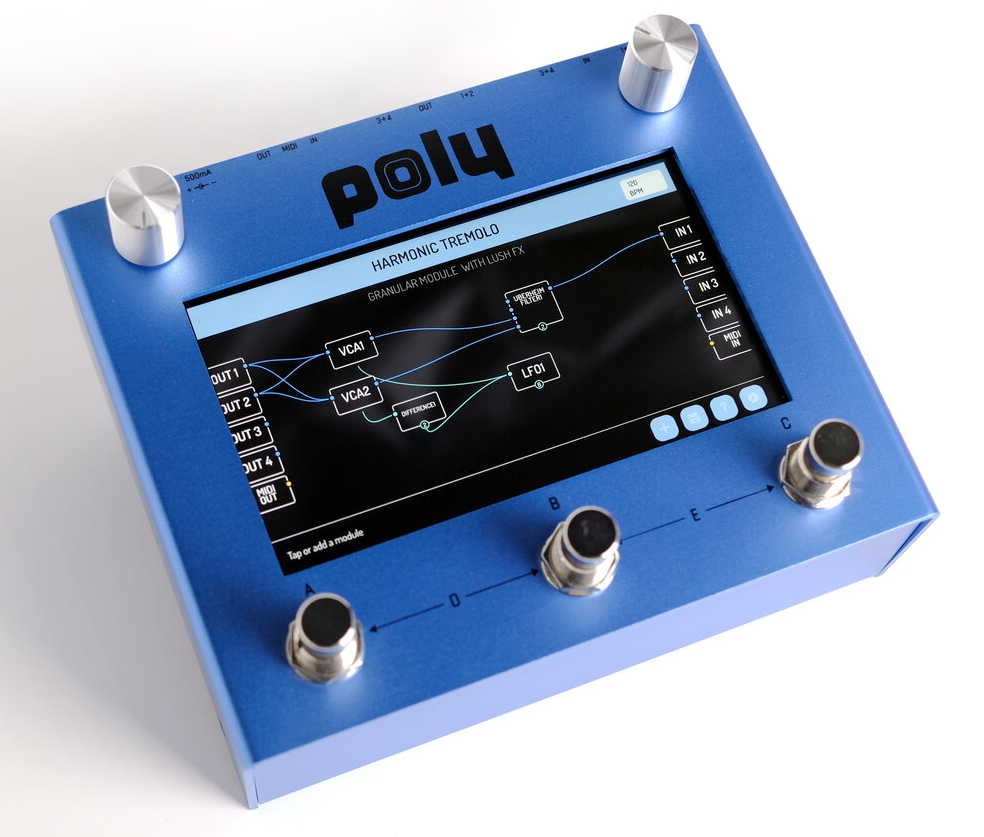
That’s why I wrote down here what I found out about its 157 modules. May it be of use for future me and for other Beebo/Hector users. However, note that I am not at all competent in what I do here. I won’t reveal the inner workings of the Diode ladder LPF module for the simple reason that I have no more than the most basic knowledge about effect units. Also, I can’t say much about the guitar and bass amp and cab modules, because I have neither guitar nor bass.
In my descriptions, I will also usually omit knobs or inputs which are super obvious or which can be easily googled, e.g. the parameters of common effect units.
This is also not meant to be an introduction to Beebo. If you are new to this device, read the official manual first.
Anyway, let’s start. My notes are based on Beebo with firmware version 406.
General remarks
There are 4 different types of signals which can be routed between input, output and the individual modules like cables beween physical units:
- Audio: a single (i.e. mono) audio stream
- CV: control signals between modules
- Midi: a stream of Midi messages
- Tempo: tempo messages to synchronize modules
More on CV signals
On physical modular synthesizers, CV (short for control voltage) signals are voltages in a defined range (e.g. -5V – +5V or 0V – 10V) and the modules can use these voltages to communicate with each other. In Beebo, being fully digital, these voltages are of course only virtual, but I’m still going to use the unit symbol V.
Beebo usually uses virtual voltages in the range -5V – +5V, but other values are possible.
Most of the modules have sliders and knobs to configure them. Some of these can be controlled not only by manually moving the sliders but also by feeding a CV signal into a certain input of the module. It seems that the range for the signal is always 0V to 5V (for monomodal settings) or -5V to 5V (for bimodal settings), no matter which range is displayed at the slider. For example: if a slider has a displayed range from 0 to 1 (the most frequent case), feed a value of 4V into the module to set it to a value of 0.8. That’s why there is sometimes a factor of 5 which crops up in my descriptions of the modules.
Keep in mind that when a slider is controlled by a CV signal, the displayed value of the slider is ignored. It is also not visible which slider is currently externally controlled.
The CV signals serve a lot of different purposes: they can activate a module, set a parameter of a module, define the amplitude of a sound over time (i.e. the envelope) and other things. So it makes sense to further divide the CV signals into subtypes. I’m going to prefix the subtype names with Cv, to make it clear if I’m talking about e.g. triggers in a general sense or about a CV signal which is acting as a trigger.
-
CvTrigger: A signal at level 0V most of the time with a very short spike to 5V and back. It is used to, well, trigger some behavior in a module. Modules which receive a CvTrigger actually seem to to react to any CV signal as soon as it exceeds 2V.
-
CvGate: A signal at level 0V with a sudden flank up to 5V and back to 0V after some time. Used to activate and then deactivate some behavior in a module. As with CvTriggers, all signals which cross the boundary of 2V seem to work as CvGate.
-
CvEnvelope: A signal which starts at 0V, ends at 0V, and has an arbitrary shape inbetween (but usually no sudden jumps), e.g. a triangle shape. Is used e.g. as the amplitude curve of a single note.
-
CvPitch: Represents a constant or changing pitch over time. A signal at level 0V usually represents C4 (the middle C), 1V is C5, 2V is C6, -1V is C3, 0.08333V is C♯4 etc.
-
Others: Of course there are other arbitrary signals, like the periodic ones from an LFO.
This is my own made-up distinction of CV subtypes. It is only a logical distinction, not a technical one. Nobody stops you from feeding the triggers coming from the foot pedal module into the cv/oct input of the Macro Osc module, even though it doesn’t make any sense. In my description of the modules, I’m going to state which type of CV signal is meant to be used, but feel free to disregard it. Maybe you come up with some cool stuff.
A word about Midi
If you have trouble connecting other gear to Beebo via Midi, keep in mind that there are two kinds of frequently used Midi TRS connectors, which are visually indistinguishable. They are, originally enough, called type A and type B. Different batches of Beebo require different types of these connectors. According to the FAQ, the following types must be used (you can find the serial number on a sticker on the back of Beebo):
- Pink case with serial number ≤ 474 or blue case with serial number ≤ 337: type B for in and out
- Pink case with serial number 475–876 or blue case with serial number 338–936: type A for input, type B for output
- Pink case with serial number ≥ 877 or blue case with serial number ≥ 937: type A for in and out
Global settings
In the global settings menu, there is a setting Midi channel. I don’t know what it does, because AFAICS all modules which deal with Midi either have individual settings for their input or output channel, or they listen to all channels, or their output channel is the same as the input.
The modules
A quick way to find the right module for the job is to think about which type of signal you want to convert to which type and then find the candidate modules in the table below. For example, you need a module which detects the pitch of an audio signal and outputs it as Midi? Look for the row “Audio” and the column “Midi note” and Bob’s your uncle.
Modules which don’t fit into the table:
- Loopler
- modules which filter arbitrary Midi messages: Midi no active sensing, Midi nodup, Midi channel filter, Midi one channel filter, Midi channel map, Midi dup, Midi event blocker
Audio sources
These modules produce audio triggered by CvTriggers or CvGates.
Macro OSC
Warning: the audio output of this module is rather loud when using headphones. Consider routing the audio through a VCA module with gain around 0.5.
A monophonic instrument and drum synthesizer with 16 different synthesis engines, or 32 if you want, because each one has two variants, which emit their audios on the Out and Aux outputs, respectively.
The first 11 (melody-like) engines are triggered in a different way than the last 5 (which are more suitable for drums):
For the first 11 engines, there are multiple ways to trigger a sound:
- feed a CvTrigger into Input Trigger while there is no connection to Input Level: a sound is played with an AD envelope (which really looks like a reverse sawtooth, that is, A=0). This envelope can control no less than 5 values: volume, cutoff of an internal LPF, frequency, morph and timbre. The sliders Frequency Mod, Morph Mod and Timbre Mod control the amount of these modulations. LPG Color controls the amount of volume and filter modulation: left means only the filter, right means only volume. LPG Decay controls the decay of the envelope.
- feed a CvEnvelope (or a CvGate (which is only a special case of an envelope)) into Input Level. Then the amplitude of the sound follows this envelope instead of the internal AD envelope.
- if there are both an CvEnvelope at Input Level and a CvTrigger at Input Trigger, the sound caused by the former is temporarily overlaid with the latter. But in this case, the AD envelope doesn’t modulate frequency, morph and timbre.
For the last 5 engines, it’s a bit simpler:
- feed a CvTrigger into Input Trigger to trigger the drum sound. The LPG Color and LPG Decay sliders have no effect, because the engines all have a decay slider in the tab with their individual settings.
- insert a CvTrigger into Input Trigger and a CvGate into Input Level at the same time to produce an accented drum sound
- insert a CvEnvelope into Input Level while there is no connection to Input Trigger. This produces a sustained drum sound, which itself is not exactly useful, but you can use that to have full control over the envelope, e.g. by connecting one of the envelope modules to the Level CV input.
To control the pitch of the sound, use either a CvPitch with Input V/Oct or Input Frequency. For the latter, you have to set the slider Frequency Mod to a value ≠ 0. Or use both, e.g. Input V/Oct to set the note and and LFO to Input Frequency to produce a vibrato.
The values of the sliders in the Modulation submenu are multiplied with the corresponding input signals. So, to modulate e.g. the timbre value, set Setting Timbre Mod to ≠ 0 and feed an LFO into Input Timbre Cv.
In the Tone submenu, the sound can be adjusted. The 3 sliders behave different for each of the synth engines. Timbre usually changes the sound from dark and dirty to bright and clean. Harmonics usually introduces dissonances.
The settings of the 16 synth engines are are relatively well documented in the manual of the Plaits module.
Multi Resonator
Simulates the effect of things resonating when excited with an initial sound. This initial sound can be an external or internal one, which means this module can act as an audio source or as an audio effect.
To control the pitch, insert a CvPitch into Pitch.
See the original manual for details. It doesn’t explain the last 4 modes, though. No idea where they come from.
Resonestor
Similar to Multi Resonator in principle, but totally different.
It is based on the Resonestor mode of the Parasite firmware for Mutable Instruments Clouds.
I’ve categorized this as audio source instead of effect, because while you can input your own audio to trigger resonating output, the pitch of the resonating doesn’t depend on it.
Timbre sets the timbre of the internal sound source from a muffled to a bright sound. Use the Trigger input to trigger a sound. Has no effect if there is an external sound source. Harmonics adds overtones.
Decay controls how fast the resonation decays. High values make the sound not decay at all.
Pitch sets the pitch of the resonating sound, because it is independent of the audio input. A value of 0 is note A, 1 is A♯ and so on.
Filter controls a LPF (when turned left) and a band pass filter with increasing resonance when turned right.
From the trigger sound, 4 independent resonating sounds are produced. Chord somehow controls their detuning or makes chords out of them. Scatter controls small delays of those 4 sounds, so that they sound like strummed.
Spread controls the position of the 4 sounds in the stereo image: at position 0, all 4 sound together alternately left or right, at position 1 they are fully spreaded out.
Gate or trigger sources
Foot Switch A to E
Foot switch D is triggered if A and B are pressed at the same time. (If D is not assigned, both A and B are triggered in this case.) E is the same with B and C.
Outputs of this module are
- a CvGate with definable levels for the closed and the open phases. Depending on the Is Latching setting, the gate is open as long as the foot switch is pressed, or it switches between the two levels with each press.
- a tempo, either the configured one or the one determined by repeatedly pressing the foot switch. Can go from 35 to 350 BPM.
If you want to switch a module completely on and off using a foot switch, you don’t need a foot switch module. Simply tap and hold a module and press the desired foot switch.
Onset Detect
Produces a CvGate when there is a sudden amplitude raise in the audio input, e.g. a played note.
This module is not simply triggered when the input audio exceeds a certain threshold. Instead, Onset Threshold refers to the attack time of the input audio: the higher the value, the faster the attack needs to be to trigger this module. At the lowest value, the attack still needs to be faster than ~300ms.
Cv to Trigger
Produces a CvTrigger when the (arbitrary) CV input exceeds 0.4V. The input must fall to a lower level than that before a trigger can be produced again.
Toggle
Emits a constant voltage of either 0V or 5V, toggles between the two values with every input CvTrigger.
Put differently, this module produces a CvGate which is opened and closed with each CvTrigger.
Trigger to gate
Emits a CvGate for every input CvTrigger.
The length of the gate results from the two sliders. If Gate length is 1, the gate is open for the duration of 4 beats.
Drum patterns
Produces three periodic CvTriggers, which are meant to trigger a bass drum, a snare and a hihat, respectively. Together, they result in a well-sounding drum pattern.
It is based on Grids by Mutable Instruments.
Additionally, there are three outputs which send out CvTriggers if the corresponding drum beat may be accentuated.
The sliders Bass Drum Density, Snare Density and Hihat Density control how often the respective sound appears from not at all to on every beat.
The sliders Map X and Map Y control when the three sounds appear. The pattern is deterministic, but not really predictable. Slowly changing the X and Y values produces smooth transitions between patterns.
The Chaos slider controls the amout of random variation of the Density controls.
A CvTrigger in the Reset input resets the pattern, so that it starts on the first beat again.
A CvGate into the HH FILL CV, SN FILL CV or BD_FILL_CV (sic) input starts a drum roll.
Euclidean
The output is up to 4 tracks of CvTriggers which can be used to create a drum pattern when connected to drum sound sources.
Each of the 4 tracks has an adjustable number (0–32) of steps. Of these, an adjustable number is active, all others are passive. Every time a trigger goes into this module, each track jumps to its next step. If this next step is active, a CvTrigger is emitted (to generate a drum sound.)
You can’t precisely configure which steps of a track are active. All you can configure is the number of active steps and an offset. Starting from the step set by offset, the active steps are evenly (as far as possible) distributed on the track.
If a track arrives on its first step again, a trigger on the corresponding Is The One output is emitted, no matter if the first step is active or not.
If the lengths of the tracks are different (especially if they are coprime), interesting polyrhythms may emerge.
Chaos controller
Outputs random, but controlled gates plus voltage levels for each gate. Since the latter can be used as CvPitches, this module can generate random melodies. But it’s also suited for generating drum patterns. It is based on Marbles by Mutable Instruments.
The “main” outputs are T2 Output, which emits a stream of CvGates, and X2 Output, which emits voltages which are constant while the gate in T2 is open. The outputs T1 Output/X1 Output and T3 Output/X3 Output work similar. Their timings and values are in a certain way dependend of T2/X2. The output Y Output is an additional random CV signal, which is independent (except for its tempo) of the T and X outputs.
Gate generator
In the page Gate generator, you control T1 to T3, that is, when the gates appear and their pulse widths: The gates of T2 always have a 50% pulse width and go out evenly with the tempo set by the slider T clock BPM and its multiplier above. Alternatively, new gates can be triggered by a CvTrigger into Input T clock trigger. In this case, the slider T clock BPM has a different functionality and acts as a random multiplier: values > 120 BPM will sometimes cause 2 or 3 gates per step, values < 120 BPM will cause a gate every 2 or 3 steps.
The slider Jitter adds randomness to the times of the gates. Also, it seems to randomly modify the pulse widths of T1 and T3.
But generally, T1 and T3 are always very narrow pulses. Their times depend on the Bias slider and the configured mode:
- Coin toss: with each gate in T2, one gate comes out of either T1 or T3, but not both. The heigher Bias is, the more likely it is that T3 is the winner.
- Random ratio: when Bias is 0.5, all gates come out of T1, T2 and T3 at the same time. If it is less than 0.5, the gates of T3 sometimes come out only every 2, 3, 4 or 8 steps of T2. If it is higher, T3 may emit 2, 3, 4 or 8 gates with each step of T2. T1 works vice versa.
- Percussive triggers: the gates of T1 and T3 come out in such a way that they form a drum pattern with kick and snare, respectively. T2 could trigger hi-hats. A Bias value of 0.5 makes a regular boom-chuck pattern, other values cause more kick or snare triggers (but in a random way).
X voltage
The page X voltage controls the levels which come out of X1 to X3.
The 3 buttons under “Output voltage range” set the range of the voltages to 0–2V, 0–5V or -5–5V.
The slider X spread sets the probability distribution of the values from infinitesimally narrow bell curve (at 0.0) to bell curve to uniform distribution (at ~0.7) to bathub shaped distribution. The slider X distribution bias sets the position of the distribution curve in the range.
The slider under Smoothness controls how the X values are changed: at the center position, a new value is emitted with each step of T2. Left of the center, the values glide smoothly between their values. Right of the center causes hard transitions, but the values are quanzited so that they, when interpreted as CvPitch, belong to the scale set in the page Steps quantizer. The further right, the less different X values there will be.
The outputs X1, X2 and X3 work independently of another. The 3 buttons under Output controls introduce even more diversity between these 3 outputs:
- The button in the middle makes only X2 follow the settings of 3 sliders in this page, while X1 and X3 will behave as if the 3 sliders are mirrored.
- The right button makes X3 obey the settings and X1 the mirrored settings. X2 takes the middle positions of the 3 sliders. I think the icons of the middle and the right buttons should be swapped.
- The left button makes all outputs obey the sliders.
As if that wasn’t enough randomization, the whole behaviour of the Xes is different if the slider External control is switched on. In this case, X2 takes the value which is present at the X spread input at the time the gate starts. The slider X spread moves these values (that is, adds a value) and X distribution bias changes the value range (that is, multiplies it with a factor). This is a bit odd, it should be the other way around. X1 and X3 have the same values as X2 most of the time, but every now and then keep their values for several steps. That is, when there is no input into X clock. If there is, other things happen which I don’t understand.
Deja vu
In the section Deja vu, you can add some order to the chaos by making the patterns of the T and X outputs (partly) repeat. With the two buttons t and X you can specify if you want to have repetitions in the Ts or Xes or both. The slider Deja vu length controls the length of a repeated pattern from 1 step of T2 to 2 steps (at ~0.2) to 8 (around ~0.8) to 16 (at 1.0). The slider Deja vu probability (or the Deja vu input) controls how identical the repetitions will be: at 0.5, the pattern is repeated unchanged. The further left, the more random changes are applied. At values > 0.5, only values from within the remembered patterns are used, and the further right, the more randomly it will jump inside the pattern buffer.
Y voltage
The page Y voltage controls the Y output. Rate is the tempo which goes from the rate of T2 to the rate of T2 divided by 64. Spread sets the range of Y values and goes from 0 to -5–5V. The icons of the Bias slider have the wrong order.
Steps sets the smoothness of the X output. No, not of the Y output, but of the X output. I venture to say that the developer of Beebo hasn’t performed even the most basic test for some of the functionalities.
Steps quantizer
Allows to set the scale which is used when Smoothness in the X voltage page is set to a value right from the center.
Envelope sources
Modules which produce CvEnvelopes, triggered by CvTriggers, CvGates or audio.
AD Envelope
A CvTrigger on either input produces on the output a curve which looks like a triangle: linear rise from 0V to 5V for the time set with Attack time, followed by a linear drop back to 0V for the time set by Decay time.
The two inputs Gate and Trigger behave identically, if I’m not mistaken.
If the input is a CvGate, it gets more complicated:
- first a logarithmic raise to 5V (logarithmic means a steep initial curve which gets flatter and flatter so that 5V are theoretically never reached)
- when the gate closes, the attack(!) phase starts by going linearly from the current value up to the final value of 5V in the time set under Attack time
- afterwards, the decay phase starts by going down to 0V as above
AD Env Level
Similar to AD Envelope, this produces an envelope which may look like a triangle, but instead of going 0V → 5V → 0V, the three levels can be configured.
The two inputs Gate and Trigger behave identically, if I’m not mistaken.
If the input is a CvTrigger, the output voltage jumps to Initial Level·5V, then rises (or drops) linearly to Attack to Level·5V in Attack Time seconds, then drops (or rises) to Decay to Level·5V in Decay Time seconds.
If the input is a CvGate, the output stays at Initial Level·5V as long as the gate is open, before rising and dropping.
Input Reset Level takes a CvTrigger and makes the output jump to Initial Level·5V. At least if the envelope is in its “resting phase”. If this input is triggered while the envelope is in its rising or dropping phase, weird things happen. Not sure if this is a bug or intentional.
Slew limiter
Takes a CvGate and slows down its rise and fall by the given time. In other words, turns a CvGate into a trapezoid curve.
Env Follower
Produces an ASD curve (looks like a trapezoid), but not triggered by a CV event, but whenever the input audio level exceeds a threshold.
If Invert is activated, the output is 5V minus the normal value, or in other words, the output looks like a bathtub.
ADSR
Produces your ordinary ADSR envelope out of a CvGate.
The control Trigger Threshold adjusts how high the input CV must be to count as an open gate.
DAHDSR
Like ADSR, but with an additional delay phase (a certain time from the gate start until the attack phase starts) and an additional hold phase (a certain time between the attack and the decay phases).
Looping Envelope
Can produce either an AD envelope, an AR envelope or function as an LFO. Can do more crazy transitions than linear ones. Can oscillate in audible frequencies.
This is a clone of the Tides module by Mutable Instruments.
The mode is set under Output → Ramp mode.
Under Output → Frequency rate you can set the frequency (in LFO mode) or the general A and D/R rates.
The shape of the ramps up and down are set in the Shape submenu. The icons are self-explanatory, except that the icons at the Slope slider are mixed up. If the Smoothness slider has a value right from the center, bumps and kinks are added to the curve. However, if Output → Frequency Range is Audible tones, the actual shape is different and more suited to curves in the audio range. See the Tides manual for the details.
The input Trigger wants a CvTrigger if in AD or LFO mode and a CvGate if in AR mode. In LFO mode, the input trigger makes the LFO start again with an upwards slide.
The controls under Mod are multiplied with their respective inputs.
The frequency can be set from outside using the Frequency or V per Oct input, or with a periodic signal (e.g. a series of CvTriggers) at the Clock input. In the latter case, the Frequency setting is relative to the tempo controlled by the clock.
As for the outputs, there are four of them, and their meaning depends on Output → Output mode:
- Different shapes: output 1 is the “normal” output which is shaped like configured, while the outputs 2 to 4 are something different. Consult the Tides manual for details, I’m too lazy to copy them. The amplitude of the outputs is multiplied by the value of Shift/Level – 0.5. But the actual resulting amplitude seems to be different for each of the 3 modes AD, AR, LFO.
- Different amplitudes: All outputs emit the same signal, but with different amplitudes. If Shift/Level is set to 0.6, output 1 has the maximum amplitude. At 0.4 too, but inverted. At values ≥0.7, ≤0.3 and 0.5, the amplitude is 0. For output 2, the maximum amplitudes are at 0.7 and 0.3, and so on.
- Different times: changes the Slope setting so that it is different for each output. See the Tides manual for details.
- Different frequencies: the outputs 2 to 4 get frequencies different from output 1. See the Tides manual for details.
Other CV sources
LFO
Produces a periodic CV signal with a certain shape. If Unipolar is set, the amplitude of the output signal goes from 0V to 5V∙Level setting, otherwise, it has the range ±(5V∙Level setting).
Note sequencer
You can define the pitches for up to 16 steps which are emitted one after another as CvPitch. You are limited to 1 octave.
Start, stop or play the sequencer backwards with the buttons on the left. Alternatively, feed a CvGate into Play to make it play as long as the gate is open. A CvGate on the input Back gate makes it play backwards.
A CvTrigger in the input Reset trigger makes the sequence jump back to the first step.
The tempo can also be set externally.
Note sequencer ext
Like Note sequencer, but without internal clock. Feed a stream of CvTriggers into the inputs to make it step forwards or backwards.
Step sequencer
Like Note sequencer, but with arbitrary CV values (0–5V) instead of notes.
Step sequencer ext
Like Note sequencer ext, but with arbitrary CV values (0–5V) instead of notes.
Strum
Lets you produce CV or Midi notes by swiping the screen.
You can select a scale (major, minor, minor 7th, major 7th) an then touch the stripes to emit notes as CV/Gate or Midi. Midi notes sometimes get stuck. The buttons on the left transpose the notes, a C scale can go from C1 to C9.
Pitch detect
Tries to guess the pitch of its audio input and emits it as CvPitch and Midi Note and also a CvGate while a note is playing.
Worked moderately well for me.
Strangely, the CvPitch output doesn’t seem follow the 1V/Oct convention, but more like 0.72V/Oct. This can be corrected by using Pitch cal in or Pitch cal out with Offset=0 and Scale=1.4.
The Gate output worked for me only if the Silence Threshold is quite high.
Pitch calculations
These modules do things with CvPitch signals.
Pitch cal in
A CvPitch in Beebo usually follows the convention that 0V is C4, 1V is C5 etc., also written as 1V/Oct. If for some reason a module outputs a CvPitch with a different convention, this module can convert it back to 1V/Oct.
How to calibrate:
- connect the module to be calibrated (the source module) to this one
- activate the Measure button
- make the source module play a C4
- make the source module play a C6
- deactivate the Measure button
From now on, the output of this module is 0V and 1V whenever the source module plays C4 and C5 etc., as it should be.
Pitch cal out
Similar to Pitch cal in, but manually. Basically, this module simply outputs a CV which is Input × Scale + Offset.
Quantizer
Input is a CvPitch, output is the input, but quantized to the configured set of pitches.
The output Changed is probably supposed to output a CvTrigger each time the pitch output changes, but in my experiments, most of the time it didn’t.
Also, the pitch quantizing seems to be buggy, the pitch output is jumpy and doesn’t always monotonically increase with increasing input.
CV Calculations
These modules do calculations with arbitrary CV signals.
Sum
The output is Input A + 5V∙Setting A + Input B + 5V∙Setting B.
This module may be not necessary, because you can add two CV signals simply by connecting two cables to the same input.
Difference
The output is Input A + 5V∙Setting A - (Input B + 5V∙Setting B).
Product
The output is (Input A/5V + Setting A) · (Input B/5V + Setting B) · 5V.
Ratio
Division of CV values. The output is (Input A/5V + Setting A) · 5V / (Input B/5V + Setting B).
X/0 results in a very high value for X>0 and in 0 for X=0.
Attenuverter
Does more or less multiplication of its inputs. “Attenuverter” is a portmanteau of “attenuate” and “invert” and means that a signal is multiplied by a factor in the range [-1, 1].
If there are two input signals, the result is Input A ∙ Input B / 5V and the settings are ignored.
If there are no inputs, the output is Setting A ∙ Setting B ∙ 5V.
If there is an input signal A, the output is Input A ∙ Setting B, and vice versa.
Min
The output is either Input A + 5V∙Setting A or Input B + 5V∙Setting B, which one is smaller.
Max
The output is either Input A + 5V∙Setting A or Input B + 5V∙Setting B, which one is larger.
Rectify value
The output is the absolute value of the input: in go 3V, out go 3V. In go -2V, out go 2V.
One of the few modules without the slightest hidden gotcha.
Sample hold
Output is Input at the time point when a trigger signal (not necessarily gate) went into the Gate input.
Or put differently, the trigger freezes the input signal.
For whatever reason, this module has a dedicated control for the threshold, above which a CV input is regarded as a trigger (or opened gate). This slider has the range [0, 10] (which indicates the voltage range 0V–50V) which is probably a mistake and should be [0, 1].
The Gate output is the input gate, but only if it exceeds the threshold.
Clock divider
Takes CvTriggers as input. Every N input triggers, a trigger is emitted.
N can be an integer number from 1 to 24. Strangely, in this module you have to round the decimal number from the slider up instead of down to get the resulting N.
Tempo ratio
The output tempo is the input tempo·B/A.
Audio effects
These modules do something with audio signals.
Volume & Routing:
Filters & EQ:
- Mono EQ
- Stereo EQ
- Tonestack
- Filter
- Diode ladder LPF
- Oog half LPF
- K org LPF
- K org HPF
- Filter Uberheim
Delay:
Reverb:
- Basic Reverb
- Mono Reverb
- Stereo Reverb
- Short Stereo Reverb
- Quad IR Reverb
- Short Quad IR Reverb
- Pitch verb
Chorus:
Flanger, Phaser etc.:
- Flanger
- Flanger ext
- Thruzero flange
- Phaser
- Stereo Phaser
- Phaser Ext
- Phaser Stereo Ext
- Doppler panner
- Rotary
- Rotary advanced
- Harmonic Tremolo
- Harmonic Trem ext
- Vibrato
- Vibrato ext
Compressor:
Saturation:
- Saturator
- Warmth
- Power Amp Super
- Power Amp Cream
- Amp NAM
- Amp Bass
- Mono Cab
- Short Mono Cab
- Stereo Cab
- Quad IR Cab
- Wavefolder
- Bitcrusher
- Bitmangle
- Granular
- Granular Looping
- Meta modulation
Granular:
Misc:
VCA
Softens the amplitude of the audio Input depending on the Gain, which can also be controlled externally.
Use cases:
- use an LFO to add tremolo to a note
- generally make the audio softer
Boost
Increases the amplitude of the audio Input depending on Gain, which can also be controlled externally.
Can be switchend on and off with the On slider (the threshold is 0.5), because who needs consistency?
Matrix Mixer
4 audio streams can go in which can be routed to 3 outputs. Left is output 1, Right is output 2, Send is output 3.
Wet dry
Allows to blend between two audios.
Two mono audios go in, the blend of the two goes out. Wet dry controls the mix, 1.0 is only the audio of the Dry input, -1.0 only the one of the Wet input.
Level sets the overall volume.
Shape seems to control the shape of the curve of the Wet dry control. A value of 0.0 makes it blend linearly between the audios, while 1.0 seems more like a sigmoid curve or something like that.
Wet dry stereo
Like Wet dry, but in stereo, and consequently with 4 inputs and 2 outputs.
Mix VCA
Mixes two mono signals into one. And maybe has other purposes I don’t understand.
In 1 level and In 2 level adjust the level of the two inputs, respectively.
Gain offset, Main gain and Output level all have the same effect, they make the output audio louder. I don’t know what the difference between the three is. I mean, the former two add saturation to the audio if they are turned up too high, but it’s ugly saturation, not nice musical tube-like saturation, so no idea what the use case is here.
2nd gain boost and 2nd gain again change the volume of the combined output, but in a different way, that is, the volume is amplified by the product of these two values. Since 2nd gain can also be negative, this can make the audio softer. Again, I have no idea what that’s about.
Mono EQ
A nice graphical equalizer with up to 6 bands. Each band can be deactivated or get an extra boost with the Resonance slider.
Stereo EQ
Like Mono EQ, but, you guessed it, in stereo.
Tonestack
If it would work, it would be a simple 3 channel EQ, where bass, mid and treble can be softened or boosted.
But it doesn’t work, so it outputs nothing.
Filter
A low pass filter. Can do self oscillation.
Both Input FM and Input Exp FM control the cutoff frequency. It seems that the values are simply multiplied.
I guess Input resonance mod controls the resonance, but is multiplied with the Resonance gain slider. In other words, the latter controls the modulation depth of the former.
Input gain and Output gain both control the output volume, the difference is that only the latter affects also the sound caused by self oscillation, so you can use both sliders to control its volume relative to the regular filtered audio.
Diode ladder LPF
A basic low pass filter. The name hints at the filter of the classic Roland synths. Q is the resonance.
Oog half LPF
Yet another low pass filter. Apparently a simulation of the Moog half ladder filter.
K org LPF
Yet another low pass filter with cutoff and resonance settings. I have the vague feeling the name hints at Korg synths.
K org HPF
A high pass filter. Who would have thought?
Filter Uberheim
A combined low pass, high pass, band pass and notch filter. The name obviously hints at Oberheim synths.
You can control the cutoff frequency and the resonance. There is an output for each of said filter types.
Delay
A basic delay. The dry signal is not emitted, only the echoes.
Level controls the volume of the wet signal relative to the dry signal. Feedback controls the dampening, that is, the volume of the echoes relative to the previous echo. Set it to 0 for (almost) only one echo and to 1 for infinite echoes.
Setting the delay time is a bit confusing. It is shown in the text field Milliseconds. The value can be typed in directly, or be set with the slider BPM (only visible if the radio button Beats is activated) or with the Tempo input. The Time factor is then multiplied with that tempo, that is, BPM=60 and Time=1 result in a delay time of 1s, while BPM=60 and Time=2 cause the delay time to be 2s. Another way to set the factor is to use the Time signature dropdown (only visible if the radio button Beats is activated). Changing this changes the value of the Time slider to (time signature)·4. Practically speaking: if you use a foot switch module to tap to the song tempo which is 120BPM, and you tap on every 8th note, then choose 1/8 from the dropdown menu to get a delay time of 0.5s (which is the beat length of the song). The option 1/8. is equal to a Time factor of 0.75 and phi to the reciprocal of the golden ratio, that is, 0.62. No idea what that’s about.
Tone apparently controls an internal LPF.
Warp sets the position of the play head inside the delay buffer. The effect is that with a value of -0.9, the first echo comes almost immediately after the original dry signal, but the next echoes still adhere to the normal delay time. But the more interesting purpose of this slider is probably that while the value is changed, the audio in the delay buffer is audibly stretched or compressed. It is a good idea to use an LFO to wiggle this value. However, the movement of the warp value (and therefore the audio twisting) is slowed down, so that fast jumps don’t cause ugly sound artifacts. The amount of slowing down is controlled by Glide, which sets the time in seconds when the audio twisting stops after letting go of the warp slider.
Bitcrushed Delay
Same as Delay, but with an extra slider for bit reduction, which works the same as with Bitcrusher.
I don’t know what the advantages are for this module versus a combination of Delay and Bitcrusher.
Time stretch
A stereo delay with extra weirdness.
Based on the Looping delay and pitch shifter mode of the Parasite firmware for Mutable Instruments Clouds (I think).
Position is the delay time.
Pitch pitch-shifts each echo up or down in half notes.
Feedback and somehow also Diffusion control the dampening of the feedback.
Spread swaps the left and right channel with each echo, which can result in a ping-pong delay.
Filter controls a LPF.
The Freeze button freezes the output signal.
Twist delay
A tape-like delay.
Based on the Variable-rate delay mode of the Parasite firmware for Mutable Instruments Warps.
Simulates a short tape loop with a play head and a read head. Length controls the distance between the two heads and therefore the delay time. Speed direction controls the speed and direction of the loop. At the minimum and maximum positions, the tape goes with normal speed backwards or forwards. If the speed is reduced, two things happen: the delay time increases and the sound quality gets worse. Also, there are the usual stretching or compressing sound effects, or the delayed sound even reverses when the tape direction is changed.
With the button on the left, you can select one of four modes which control what happens with the inputs and outputs:
- Open FB loop: the audio input In 1 is the delay input and Out the output. In 2 goes into the feedback and Aux is the output of the feedback.
- Dual delay: In 1 and In 2 are delayed independently of another and Out and Aux are their outputs, respectively.
- Tape delay: Like Dual delay, but additionally, the feedback goes through filters, distortion and added hiss to simulate analog tape.
- Ping pong: Like Dual delay, but the feedback of channel 1 goes into channel 2 and conversely, resulting in ping-pong delay.
Basic Reverb
An algorithmic, stereo reverb.
Mono Reverb
A mono convolution reverb. Load an IR to make it work.
An IR (impulse response) is the distribution of echoes when a sound impulse is played in a certain hall. With that IR, this module makes each arbitrary audio sound as if it was recorded in that hall. Hooray for mathematics!
Stereo Reverb
Like Mono Reverb, but in stereo.
Short Stereo Reverb
At a first glance the same as Stereo Reverb.
Quad IR Reverb
Like Mono Reverb, but in stereo.
Short Quad IR Reverb
At a first glance the same as Quad IR Reverb.
Pitch verb
An algorithmic stereo reverb with additional weirdness.
It is based on the Miverb (or Oliverb?) mode from the Clouds Parasite firmware for the Clouds module.
Blend crossfades between the dry and the wet sound.
Size controls the size of the simulated room.
Decay sets the length of the tail. Caution, high values result in infinite feedback.
When Pitch is not 0, the reflections will be shifted up or down in pitch each time they hit the virtual wall.
Damp sets the material of the walls from non-reflective to metallic to weird.
Pre-delay sets the delay until the first reflections arrive. If there go CvTriggers into the Trigger input which make a tempo, the delay is set relative to this tempo.
Diffusion sets the texture of the reverb tail from simple, echo-like to completely diffused.
When the Freeze button is activated, the current reverb tail is frozen and repeated infinitely.
The delay times of the several echoes can be randomized. The speed and amount of this modulation are controlled with Modulation speed and Modulation amount.
Chorus D
Adds a stereo chorus to a mono signal.
Chorus D Ext
Like Chorus D, but without an internal LFO to make the chorus wiggle. You have to provide one.
Chorus J
Apparently a simulation of the popular chorus of the Roland Juno.
Flanger
Well, a flanger.
Waveshape seems to go from triangle-like to rectangle.
Flanger ext
Like Flanger, but you have to provide the LFO yourself.
Thruzero flange
Also a flanger.
The internal LFO seems to have a sawtooth shape. Mix is the effect amount. Rate sets the speed of the LFO and Depth·Depth mod its maximum amplitude. Feedback at 0.5 means probably no feedback and lower values inverted feedback or something.
Phaser
A basic phaser.
Stereo Phaser
Like Phaser, but in stereo.
Phaser Ext
Like Phaser, but you have to provide a LFO yourself. Caution, if you feed in negative CV values, the module seems to crash, at least it won’t output anything anymore.
Phaser Stereo Ext
Like Phaser Ext, but with stereo output. Also, if this module crashes, only the left channel gets stuck.
Doppler panner
Takes a mono or stereo signal and makes it sound like coming from a certain spot in the room. Has an internal LFO which makes the sound spin around the listener’s head. Also simulates the doppler effect when the spot is moving towards or away from the listener.
Based on the Binaural Doppler panner mode of the Parasite firmware for Mutable Instruments Warps.
The left and right input channels are moved so that they are always at the opposite place.
X Coordinate (left/right) and Y Coordinate (near/far) control the place where the sound should come from.
LFO Amplitude and LFO Frequency control the amount and speed of the spinning. The frequency can go well into audio territory.
Mono compressor
A compressor with the usual settings.
Stereo compress
Like Mono compressor, but in stereo.
Saturator
Pregain adds saturation, Postgain only sets the volume.
Warmth
Claims to add subtle analog warmth.
Drive could be the effect amount.
Tape-tube blend I guess blends between simulation of a tape and simulation of a tube. Low values sound more dirty than high values.
Wavefolder
Based on the Wavefolder mode of the Parasite firmware for Mutable Instruments Warps.
Bitcrusher
Produces glitchy sounds by doing bit reduction.
Bitmangle
Bit-wise combines two audio sources for glitchy sounds.
Based on the Dual bit-mangler mode of the Parasite firmware for Mutable Instruments Warps.
Instead of two input audios, you can also use one and the sound of an internal oscillator. It is activated with the button on the left.
The slider XOR vs AND morphs between dry sound (carrier only), bit-wise AND and bit-wise XOR.
Bits controls the bit reduction.
Amp or freq controls the frequency of the internal oscillator if it is active, otherwise the amplitude of the carrier input audio.
Input amplitude 2 controls the amplitude of the modulator input audio.
The output Out emits the combined and bit-reduced result. Aux emits the bit-reduced internal oscillator if it is activated or the bit-reduced sum of the two input audios.
Granular
This is what I think is happening here: As the audio stream is passing through its play head as usual, a second play head is reading the audio signal “from the past” and sometimes plays a short snippet (the so called grain) of it back. Effects may be applied on this grain. Also, there is feedback involved by (I think) adding the grain to the next grain.
Based on the Granular mode of the Parasite firmware for Mutable Instruments Clouds.
The slider at the bottom right controls how often the second play head plays a grain. On the center position, it is played not at all. While turning the slider to the left, a grain is played more and more often evenly distributed, until it is played virtually all the time, resulting in an almost normal sounding delay. Turning it further to the left, multiple grains are produced which overlap. The right half of the slider works like the left half, only the grains are randomly distributed instead of evenly.
Aside from that, a grain is also played when a CvTrigger goes into the Trigger input.
The slider at the top right controls the envelope of the grain, resulting in a smoother or harsher overall texture. Fully set to the right, the grains are somehow smeared.
The Position slider controls the distance between the two play heads, thereby setting the amount of delay from almost 0s to 1s, as far as I can tell.
The Size slider sets the length of the grains from 0.2s or so, where the input audio is still recognizable to very, very short which results in novel sounds.
The Pitch slider controls a pitch change of the grain (also, it seems to influence the position value). Together with the Feedback control, this results in funny ascending or decending glitchy sounds.
The Blend slider simply controls the dry/wet ratio, that is, the relative volume of the two play heads.
The Reverb control adds a (very strong) reverb, not only on the grain but also on the dry signal.
The Spread slider controls how randomly the grains go to the left or right audio output.
The Feedback slider controls how much a grain is damped before adding it to the next grain. Little dampening results in horrible feedback, so be careful. Live-controlling this value using the hardware knob of the Beebo can be fun, though.
If the Reverse knob is active, the grains are played in reverse.
Press and hold the Freeze knob to “record” the audio input into a short buffer. After that, the grains are only generated from the audio in this buffer instead of the input audio stream. The Position slider now controls the position in the buffer used for the grains.
Granular Looping
Works similar to Granular, but without the chopping of the audio into grains, that is, the complete audio is repeated.
Based on the Looping delay mode of the Parasite firmware for Mutable Instruments Clouds (I think).
Tape length sets the length of the buffer and therefore the length of the delay. Goes up to about 1s. Changing the value results in those typical funny compressing and stretching sounds.
Diffusion: not sure what it does, but the heigher, the shorter the reverb tail. But there is more happening.
Reverb: adds a strong reverb
Feedback: like with Granular, controls how much the current feedback buffer is dampened. A value < ~0.5 does dampening, thus the feedback fades. With > ~0.5 the feedback gets stronger, so be careful. If Pitch is ≠0, there is more dampening happening.
Filter adds exactly this to the signal. On the left its a LPF, on the right a HPF.
Reverse: not sure what that does.
Freeze: works like with Granular, but the recording buffer is rather short.
Reverse
Chops the audio into fragments of the same length and plays them in reverse.
Consequently, the audio is delayed by the length of one fragment.
Meta modulation
Blends two audio sources into one, how exactly depends on the configured mode.
This is based on Warps by Mutable Instruments. However, the last 3 modes (Vocoder 1, Vocoder 2 and Freeze) don’t work. If the mode slider is in the vincinity of those modes, the module simply doesn’t output anything. Beebo remains a mystery.
One of the two audio inputs is called Carrier and the other one Modulator, because that’s how they work in some of the modes. Instead of an audio input, the carrier can also be provided by an internal oscillator. It is activated by tapping two times on the little wave-like icon in the upper left. Notice that the two rightmost buttons are mixed up: the button which says “sawtooth” produces a triangle wave and vice versa.
The Level 1 slider on the second page of the module sets the volume of the carrier input or the frequency of the internal oscillator, if it is used. Level 2, unsurprisingly, controls the volume of the modulator input. What Timbre does depends on the selected mode, but most of the time it somehow controls the intensity of the effect.
The Aux output is the sum of carrier and modulator if there is a carrier, otherwise only the internal oscillator.
What exactly are the 9 6 modes doing? Don’t know, I understand barely half of it. Consult the Warps manual.
Pan
Allows to place an audio signal left or right.
Takes an audio signal and routes it to Output Out L or Output Out R according to the setting.
Rotary advanced
Simulates the rotation effect of a Leslie speaker.
Put simply, this uses a filter to split the input audio into the high and low parts. The low part is sent to a virtual speaker called drum and the high part to so called horns. Both drum and horns rotate (independently from another), thus create a weird but pleasant tremolo-like sound.
Horn level and Drum level control the volume of the horn and drum part.
With the 3 speed buttons in the lower left, you can set the speed of the rotation. If the small Chain button above them is deactivated, the speed of horn and drum can be set independently of another. If it is activated, pressing Horn and then one of the speed buttons controls the speed of both drum and horns.
The speeds can also be set by a CV input into Drum speed or Horn speed. But it’s a bit weird: fast speed is activated with a CV value > 3.333V, stop with a value < -1.6666V and slow with values inbetween. Drum or horn are also stopped with a CvTrigger into Drum brake or Horn brake.
Horn acceleration, Horn deceleration, Drum acceleration and Drum deceleration control the duration in seconds how long it takes for drum and horns to reach the target speed.
What the other controls do is pure guesswork: Horn signal leakage seems to control the volume of the dry signal. Drum → Split → Frequency perhaps controls the frequency which splits the sound into the high and the low part, but Horn → Split → Frequency does something else?
Rotary
Like Rotary Advanced, but with fewer options.
Pitch shift
Shifts the pitch of the input audio without stretching or compressing it. The audio (dry and wet) is audibly delayed.
Harmonic Tremolo
In case you don’t know what harmonic tremolo is: the audio signal is split into two audios which contain the low and the high frequencies, respectively. This is done with a HPF and a LPF, obviously. Then, tremolo (that is, a periodically wobbling amplitude) is applied to both parts individually, but phase-shifted, so that alternating the low and the high parts get louder.
Crossover Freq sets the frequency at which the audio is split.
Harmonic Trem ext
Like Harmonic Tremolo, but you need to provide the LFO for the tremolo yourself.
Vibrato
A vibrato effect.
BPM oviously sets the tempo of the vibrations and Notch depth the depth. The other controls, no clue.
Vibrato ext
Like Vibrato, but you have to provide the LFO yourself.
Auto swell
Softens the attack of an audio signal.
I think what happens is that when the amplitude of the input audio exceeds Threshold, it is first immediately softened. Then, it gets louder by and by for Uptime seconds, until the original amplitude is reached. From this point on, the audio is not softened, as long as the input still exceeds the threshold amplitude. Only if the input audio amplitude falls below Threshold for Downtime seconds, the process starts over and the next time the audio exceeds the threshold, it is softened.
Threshold can also be set from the input.
Freeze
„Freezes“ the input audio by repeating a short snippet (a grain) from it.
The grain is repeated as long as a CvGate goes into Input Freeze.
Turntable stop
Simulates the effect of stopping a playing record.
The virtual plug can be pulled either by a CvTrigger or the switch.
Decay curve goes from steep then soft fall (-10) to linear fall (0) to soft then steep fall (10).
Vinyl
Makes the input audio sound like coming from an old vinyl record.
Lets you add motor noises, crackles, and other noises. For some of them you can control the pitch.
Aging seems to be basically the amount of a LPF, of which the frequency can also be controlled.
Midi effects
These modules change Midi note on/off signals.
Midi map key channel
Changes the channel number of note messages so that each of the 12 keys can go to a different channel.
This could be useful for drums, because you can use this module to send different keys to different sound sources.
If one of the sliders is set to 0, note messages with this key are discarded.
Midi keysplit
Splits a Midi keyboard so that one part goes to one Midi channel and one part to another.
Furthermore, both parts can be transposed independendly of another.
Midi keyrange
Filters or lets pass only notes in a specific range.
Mode 1 means that Midi notes in the range specified by Lowest note and Highest note are discarded, Mode 2 makes only those pass and discards all others. Mode 0 means that no filtering happens.
The lowest and highest notes are given as Midi note number, where 60 is the middle C.
Midi choke filter
Out goes a Note-Off Midi signal for a configurable note whenever a Note-On for a note in a configurable range goes in. This is useful for making drum beats a bit more realistic: when a closed hi-hat sound starts to play, an open hi-hat sound should stop immediately.
The key-off velocity of the output signal can be configured, but I don’t know what the range of 0–2 is supposed to mean.
The setting Filter channel doesn’t seem to have an effect, the channel of the output signal always seems to be the one of the input signal.
Midi delay
Note on and off messages go in and come out, but delayed.
The delay time is derived from the BPM and Delay beats 4/4 sliders. The latter is obviously the number of quarter beats by which the notes are delayed. The tempo can also be fed into the module.
The Randomize slider controls how much the actual delay times are randomized. Use the two physical knobs with this slider, because with touching you can only set it to 0 or 1. Even with randomizing, the notes will come out in the same order as they were fed in.
Midi NTap delay
Adds delayed repetitions to a Midi note.
Repeats is the number of repeated notes. Velocity Ramp can be positive or negative, the value is added to the note’s velocity value for each repetition. With BPM (which can’t be controlled from outside) and Repeat-time in beats, the delay time is controlled. The latter is simply a multiplicator: set to 1.0, the delay time is one beat long, with 2.0 two beats etc.
Midi Quantize
Delays Midi note-on and note-off messages so that they are aligned to a time grid.
BPM is the tempo and can be controlled from outside. If Quantization grid is 1.0, the notes are aligned to quarter notes, with 0.25 to 16th notes, with 4.0 to whole notes etc.
If Note-off behavior is (rounded up) 1, note-off events are delayed so that each note is at least one grid unit long. If it is 0, this is not enforced, which may result in notes which have a duration of 0s.
Midi chord
In goes one Midi note, out go multiple Midi notes which form a chord.
With the buttons, you configure which kinds of intervals are added to the input note, which is the root note of the chord. (Bass is an octave below the root note, Octave one octave above.) It then depends on the Scale slider whether the interval is a major or a minor one (for fourths and fifths: perfect or augmented/diminished), that is, the intervals are chosen so that they belong to the configured scale. The Scale value 0 means C major (or A minor), 1 is C♯ major (A♯ minor), 2 is D major (B minor) and so on.
For example, if all interval buttons are activated and Scale is set to 0 (that is, C major), and a C4 note goes in, the resulting chord consist of the notes C3 (“Bass”), C4 (the root), D4 (major 2nd), E4 (major 3rd), F4 (perfect 4th), G4 (perfect 5th), B4 (major 7th), C5 (“Octave”). The input note B4 would result in: B3, B4, C5 (minor 2nd), D5 (minor 3rd), E5 (perfect 4th), F5 (diminished 5th), A5 (minor 7th), B5. Another example: if you want to turn a C note into a C⁷ chord, activate the buttons Prime, 3rd, 5th and 7th and set Scale to 5 (F major).
If the input note itself does not belong to the configured scale, it is emitted unchanged without any other notes.
With Filter channel you can specify on which Midi channel the module is listening. Messages on other channels simply go through unchanged. If 0, it listens on all channels.
The function of the Hold chord switch was “When enabled, parameter changes apply to new chords only” in the apparent original code of this module. I think here in Beebo, it has no effect.
Midi enforce scale
Let only those Midi notes pass which belong to a configured scale.
The Scale slider sets the used scale the same way as in Midi chord: 0 means C major or A minor, 1 is C♯ major or A♯ minor and so on.
If Mode is 0, input Midi notes which don’t belong the the scale are discarded. Mode 1 means that outside notes are converted into the next scale note below. Mode 2 the same, but the next scale note above.
As usual, Filter channel specifies for which Midi channel this module applies (0 for all channels).
Alternative: Midi map key scale for more control over the mapping of each key
Midi map key scale
Transposes each of the 12 keys up or down individually to enforce a certain scale.
You can transpose each key in half-tone steps from -12 to 12. If a slider is set to -13, Midi messages with this key are discarded.
Midi transpose
Transposes all Midi notes.
Transpose goes from -63 to 64.
If Inversion point is not 0, the note values are reversed: low notes are turned into high notes and vice versa. The slider sets the Midi note at which the notes are mirrored before transposing.
Sometimes I imagine that the developer of Beebo just thinks that consistency is boring and deliberately adds small things to every module to make it not work like the other modules. In this module, the easter egg is that in the Transpose and Inversion point sliders, you have to round the visible decimal numbers to get to the integer number you actually want to set. That is, to transpose the notes one whole step up, you can set the slider to a value in the range [1.5, 2.5]. In most of the other modules, you would round the number down or up to the next integer number.
Midi strum
When multiple notes go in at the same time, the individual notes are delayed so that it sounds like strumming.
Notes are regarded as played at the same time if they come in a time interval given by Note collect timeout [ms],
The duration of the strumming is determined by BPM (which can also be set externally) and Strum duration beats.
If Strum acceleration is greater than 0, the notes are timed so that later notes are closer together. If Randomize acceleration is on, this acceleration value is randomized.
If Velocity change is greater than 0, later notes get a higher velocity. If Randomize velocity is on, this velocity value is randomized.
Why the two switches are switches instead of sliders is one of the many secrets of Beebo.
Strum direction works as follows:
- 0: plays the collected notes from lowest to highest
- 1: highest to lowest
- 2: alternating upwards and downwards
- 3: according to the original code, this is supposed to play the notes downwards on each beat and upwards on each half beat between the beats, but in practice it’s always upwards.
- 4: like 3, but with 8th notes
Midi mono legato
Holds a (single) note, until the same or another one is pressed.
In other words, this module swallows note-off Midi messages and instead sends one when a note-on of the same or a different note arrives.
Midi messages on channels other than the configured one go through unchanged, channel 0 means all channels are processed.
Midi note toggle
Holds notes until they are pressed again.
In other words, this module swallows note-off Midi messages and instead sends one when a note-on of the same note arrives.
Similar to Midi mono legato, but polyphonic, if you want.
Midi sostenuto
Simulates a sustain pedal by delaying note-off messages.
If Pedal mode is 0, this module is bypassed. If 1, note-off messages are (individually) delayed by the time set by Sostenuto [sec]. If 2, the module listens for a CC message number 64 (and maybe others?), which usually indicates the state of a sustain pedal or similar. If this pedal goes off, note-off messages for all currently held notes are sent out. But still each note lasts at most the time set by Sostenuto [sec].
Midi tonal pedal
Listens for Midi signals of a sustain pedal and delays note-off messages accordingly.
If Pedal CC is off, the CC number 64 is checked for as pedal input, otherwise number 66. Obvious, right?
If Forward CC is on, a possible sustain pedal CC message is also emitted on the module output, otherwise, it is filtered out.
Midi rand velocity
Randomly varies the velocity of note-on and note-off messages to make a sequence sound more human-like.
Velocity randomization (let’s call it r) controls the amount of variation. If Random mode is off, a value from the interval [-r, r] is drawn uniformly and added to the original velocity value of the note. If Random mode is on, a value is from a normal distribution with standard deviation r is chosen and added to the original velocity.
Midi velocity gamma
Changes the velocity of Midi notes.
Processes note-on velocity and note-off velocity independently.
To describe the functionality in numbers: an input velocity v is converted from the range [0, 127] the the range [0, 1], then, vΓ is computed and the result again converted to the range [0, 127]. In prose: A gamma value of 1.0 has no effect. A larger value has the effect that for low velocity values, small input velocity changes lead to almost no changes of the output velocities, but in higher velocity ranges, the velocity becomes very sensitive to changes. For gamma values < 1.0, it’s the other way around.
Midi velocity scale
Changes the velocity of Midi notes in a linear way.
Changes the velocity of note events with separate controls for Note-on and Note-off. The input range [0, 127] is mapped to the range [Min, Max]. If Min is greater than Max, the range is reversed. The Offset value is added to the velocity event after mapping to the Min/Max range.
Midi velocity range
Filters out midi notes in a certain velocity range.
If Operation mode is
- 0: nothing happens
- 1: only notes with velocities inside the configured range are passed to the output
- 2: notes with velocities inside the configured range are filtered out
- 3: like 1. The fact that the slider can be set to 3 is probably a bug which already existed in the original source code.
Other Midi stuff
CV to note
When a CvGate goes in, a Midi note signal is sent out. Its pitch is the one of the applied CvPitch input or C4, if there is no pitch input.
The velocity is determined by the CV signal at the Velocity input.
The output pitch can be transposed via the Note offset slider. At least in theory. In practice, negative values have no effect. When transposing, note values wrap around 127.
Midi note to CV does the opposite.
Midi note to CV
Converts a Midi note to 3 CV outputs:
- output Gate emits a CvGate which is open as long as the note is held, or in other words, until the note-off message is received
- output Pitch emits a CvPitch
- output Velocity is a signal in the range 0V–5V and represents the velocity of the Midi note
The sliders Octave, Semitone and Cent can be used to transform the pitch of the output.
Channel configures the Midi channel from which this module receives Midi messages. Strangely, this slider has no position 0 to listen for all channels like in most of the other modules.
Panic resets the outputs to 0V, which is handy if something with the input went wrong and no note-off messages are received. I don’t know why this function is realized with an on/off switch instead of a button, because weird things happen when this switch is left activated, but there are many things in Beebo I don’t understand.
Speaking of which, I also have no idea what the Retrigger switch does.
Poly note to CV is the polyphonic alternative. CV to note does the opposite.
Poly note to CV
Like Midi note to CV, but polyphonic.
Can receive Midi signals with up to 4 notes at the same time and outputs them as CvGate plus CvPitch. Also outputs a CV signal with the velocity, but only for the last played Midi note.
CV to Midi CC
Periodically sends CC Midi messages with a value corresponding to the input CV value. The CC number is configurable. The output Midi channel is configurable, too, but there seems to be a bug, because what actually goes out has the channel number which is configured + 1.
Resolution refers to the value range, not the time.
Midi CC
Converts a Midi CC message to a CV value.
As usual, Minimum and Maximum have to be multiplied by 5V to set the min and max voltage output. Also as usual, the values of the CC Number slider have to be rounded down to an integer number to get the configured CC number.
The output of the module is a constant voltage. Is is only updated when the input Midi CC message is changing.
If you want to use a CC value to control a slider in some module, you don’t need this module, because there is an easier way: go to the module you want to control, tap and hold the three dots at the bottom of the screen and then tap the slider you want to control. In the menu which opens, tap the Midi button so that it starts blinking and insert a Midi CC message into Beebo, e.g. by turning a knob of a connected Midi controller. This method has the advantage that the CC message also moves the slider, that means, the current value is immediately visible. A disadvantage is that from the main screen you can’t see if a slider is currently controlled by a CC value and which one.
Midi CC to note
Turns a Midi CC message into a Midi Note-on message.
When Operation mode rounded down to an integer is
- 0: the pitch of the output is the configured one, short duration, the velocity is set by the input CC value
- 1: the pitch is set by the CC. A CC value of 63 is C4, I think. Very short duration. The velocity is a constant of 2.5V.
- 2: like Operation Mode 0, but the pitch is a very low one
- 3: the pitch is very high and the velocity a constant of 1.5V
Filter channel: which Midi channels to listen to. 0 means all channels.
Looks like all non-CC messages (including Note-On) simply go through.
Midi note to CC
Turns a Midi note-on message into a Midi CC message.
When Operation mode is
- 0: when a Midi note with pitch configured with Active key arrives, a CC message comes out with the number set by CC parameter and a value which corresponds to the velocity of the note-on message. If Ignore note off is on, the output is only updated when a note-on message arrives, otherwise the output jumps to the CC value 33 when a note-off message is received. No idea where the 33 comes from.
- 1: the CC value of the output corresponds to the pitch of the input note. Active key and Ignore note off have no effect.
- 2: no idea
- 3: no idea
Midi note to PGM
Turns a Midi note into a Midi Program Change message.
The program number of the output is the note number, e.g. the middle C will result in program number 60.
The sliders Min velocity and Offset are self explanatory. In contrast, the Mode slider is puzzling, it also applies an offset to the output message number, but in a weird non-linear and non-monotonic way.
Midi PC
Emits Midi PC messages when triggered.
Midi PC (Program Change) messages are used to select a preset of a device.
When a CvTrigger goes into the Set trigger input, the module emits a Midi PC signal with the selected PC number. Notice that in most synths, the preset numbers start with 1, which means that in order to select preset number 5 on a synth, you have to send the PC number 4.
A CvTrigger into Up trigger is for switching to the next preset: if it is triggered after changing PC number, this number plus one is emitted. With every further trigger, the number is increased. After 126, the next one is 0. Yes, 127 is skipped. The Down trigger input works analogously.
Midi MapCC
Changes the controller number of a Midi CC message.
Midi scale CC
Changes the value of a Midi CC message.
Value offset, which can also be negative, is added to the value.
Value scale is multiplied with the value. If negative, the result goes from 127 down to 0.
Value mode controls what happens when the changed value is outside the range 0–127:
- 0: it is clamped to the range 0–127
- 1: the value is reflected at the boundaries, that is, -10 results in 10 and 137 results in 117. At least this is what the original documentation says, in reality, only negative values are reflected while values > 127 wrap around.
- 2: the values wrap around, that is, -10 results in 118 and 137 results in 9
According to said original documentation, the controls Parameter (min), Parameter (max) and Parameter mode are probably supposed to restrict the resulting CC value to a given interval, but that doesn’t work here. The former don’t seem to have any effect and the latter essentially deactivates this module if it is 0 or 1.
Midi no active sensing
The documentation of the software where this is problably stolen from says:
Filter to block all active sensing events. Active sensing messages are optional MIDI messages and intended to be sent repeatedly to tell a receiver that a connection is alive, however they can clutter up the MIDI channel or be inadvertently recorded when dumping raw MIDI data to disk.
Midi nodup
The documentation of the software where this is problably stolen from says:
MIDI Duplicate Blocker. Filter out overlapping note on/off and duplicate messages.
Midi clock in
Turns a Midi tempo signal into a Beebo-internal tempo signal.
Expects Midi beat clock messages on the input, that is, a certain Midi message 24 times per quarter note.
The tempo derived from the input is emitted as tempo signal and furthermore as CV signals:
- the Is running output emits a CvGate which is open as long as there are Midi clock messages
- the Start trigger output emits a CvTrigger when Midi clock messages start to arrive
- the Clock pulse output emits a CvTrigger for each Midi clock message, that is, 24 triggers per quarter note. With the slider Pulse divider, you can reduce this number. A value of 24 results in one CvTrigger per quarter note.
Midi clock out does the opposite
Midi clock out
Emits Midi beat clock messages.
If a tempo signal is fed into the (invisible) tempo input, this tempo is used, otherwise the tempo of the BPM slider.
Midi clock in does the opposite
Midi channel filter
It’s exactly that. For each of the channels (which are nicely sorted alphabetically), you can decide if input messages on this channel should also appear in the module’s output or be dismissed.
Midi one channel filter
Lets only messages with the configured channel pass.
Here, you have to round the number of the slider up to get to the channel number.
Midi channel map
Changes the channel number of each Midi message. For each channel of an input message you can set the target channel number.
Midi dup
Copies Midi messages from one channel to another.
Midi event blocker
Lets you discard certain kinds of Midi messages, e.g. CC messages or note on/off messages.
Guitar and Bass
Power Amp Super
Simulates a guitar amp.
Gain adds nice saturation.
Power Amp Cream
Similar to Power Amp Super.
The only difference between these two modules seems to be that this one has a slider Level instead of Gain, which also doesn’t add nice but ugly saturation.
Amp NAM
A guitar amp simulation which is based on the behavior of real devices.
Amp Bass
Simulates a bass amp.
I guess the “SVT40” in the module description doesn’t refer to this Soviet semi-automatic battle rifle but rather to some model of the Ampeg SVT series.
Mono Cab
Simulates the effect of running audio through a speaker and then capturing it with a microphone.
As a keyboard player, I was very surprised about this, but then I learned that this is a common way to add much desired extra saturation to guitar or bass sound.
Select an amp and a microphone to make this module work. The Gain can also be controlled externally.
Short Mono Cab
At a first glance the same as Mono Cab.
Stereo Cab
Like Mono Cab, but in stereo.
Quad IR Cab
Also a stereo cab simulator. Don’t know what the difference between this and Stereo Cab is.
Tuner
A tuner for guitar and bass.
A faster way to start this module is to press the foot switches A and B at the same time, as long as D is Tuner in the global settings of the Beebo is switched on.
I don’t know what the Midi output of this module does. I would expect that it sends out a Midi note of the detected pitch, but in my experiments, it didn’t output anything, at least no Midi notes.
Other modules
CV Meter
Displays the value of its CV input. Useful if a patch doesn’t work as expected and you want to see what’s going on with all the CV values.
Displays the current value and the min and max values encountered. The latter two are only remembered as long as the Reset switch is turned off.
The slider has a range of -5V to 5V, while the displayed number is capped at -10V and 10V. No idea why, the other modules seem to handle voltages above 10V just fine.
The CV output of the module equals its input.
Loopler
Turns Beebo into a looping pedal: record and loop multiple sequences, overdub them, shorten or lengthen the loops etc.
This is the only module which has a description in the Beebo manual which is worth mentioning. It’s cursory, incomplete and incorrect, but that should surprise no one at this point.
To get started, add both the modules Loop Common In and Loop Common Out. If you want to have your loops in stereo, add both modules twice so that you have two audio inputs and outputs. Why is this the way it is? My guess is that the plan was to make it possible to put arbitrary other sound effect modules between Loopler input and output which will then affect the looped sound. But that’s not possible at the moment.
It doesn’t matter which one of the Loopler modules you tap to open Loopler, unlike all other modules, there is only at most one instance of it.
It is advisable to assign the hardware knobs to actions of the Loopler: tap and hold a command button and press the foot switch (not the other way around as the manual suggests). An even better way would be to use an external Midi pedal board. To bind a Midi signal to a Loopler button, tap the Midi symbol at the bottom of the screen so that it is blinking and input a Midi signal. If you want to use internal Midi signals (that is, not from the Beebo’s Midi input), add a Loop Extra Midi module and connect the Midi signal to its input. I’m not sure what the Loop Midi Out module is for.
To hear the sound you’re feeding into the Loopler (and not just Loopler’s output), either additionally route the input audio to your desired output or set Global settings → Dry in the Loopler to a value > 0.
For some functionalities you have to understand the difference between a loop and a cycle:
- A loop is mono or stereo audio of a certain length. You can have multiple loops at the same time. The loops are displayed in the lower half of the Loopler screen. You can swipe the list of loops left and right. One of the loops is always the active one. If no loop is visually highlighted, the last one is active. To delete the active loop, tap the paper bin symbol at the bottom (only visible if there is more than one loop).
- A loop consists of one or more cycles. All cycles in a loop have the same length. The cycles may or may not have the identical audio content. To see how many cycles a loop has, divide the Total duration shown in the loop’s icon through the Cycle duration.
In Global Settings → Quantize you can set quantization to cycle, loop or 8th, which means that the effect of some of the actions start only at the start of a cycle, loop or 8th note (the latter oviously depends on the configured tempo).
Record
Start and stop recording in the active loop. Its previous content is deleted.
If Level/Sync → Threshold is > 0, recording doesn’t start immediately, but only when loud enough audio is coming in.
Hint: start and stop recording exactly on a downbeat.
Overdub
As long as this is activated, the incoming audio is recorded on top of the active loop.
If Level/Sync → Feedback is < 1, the recorded audio will get softer (and eventually disappear) with every loop pass while overdubbing.
The Quantization setting has an effect on the start of the recording.
Replace
Like Overdub, but the previous content of the loop is deleted while Replace is active.
Quantization doesn’t have an effect here, even though the manual says so.
Substitute
Like Replace, but while you are recording, you can still hear the previous content of the loop which you are overwriting. It is deleted from the loop, nevertheless.
Multiply
As long as this is activated, the loop is lengthened with copies of itself. The loop then consists of multiple cycles. This is useful e.g. to multiply a bar of drums.
The loop can also be shortened to a lower number of cycles afterwards.
While Multiply is activated, you can also overdub. If Level/Sync → Round is activated, overdubbing does not stop as soon as Multiply is deactivated but at the end of the current cycle. Quantization works, too.
Insert
A new snippet is recorded, but its length is always a multiple of the loop’s cycle length. The newly recorded cycles are inserted along the other cycles of the loop.
Quantization and Round work here, too.
Trigger
Plays the active loop, but always from the start. The button is often highlighted, probably a bug.
Reverse
Plays the active loop backwards. Can also be activated while overdubbing.
Quantization works.
Mute
Mute the active loop.
Solo
Mute all but the active loops.
Press it again to unmute all loops even the ones which were muted to begin with. This behavior is contrary to what the manual says.
Oneshot
Play the active loop once from the start and then mute it.
Delay
This is a weird thing: activating Delay mode completely changes the behavior of Loopler and also forgets the current content of the loops. This happens without any visual feedback. Deactivating Delay mode restores everything from before.
Activate Delay mode by tapping Delay twice. The time between the taps determines the length of one loop which is played repeatedly and can be overdubbed. Level/Sync → Feedback has the same behavior as in Overdub mode. While Replace is activated, nothing is recorded. That’s it. All other buttons make Loopler go back to normal mode and the loop recorded just now is forgotten.
Other buttons and settings
Undo and Redo do what you would expect and are very handy.
If Level/Sync → Play Feedback is activated and Feedback is < 1, the loops will get softer with each repetition. The softening remains even if Play Feedback is deactivated. Use Undo to restore the original value.
Rate → Rate sets the playback speed of the loop (thereby changing pitch). Can also be modulated while recording for nice wobbling effect.
Tap Rate → Scratch to activate Scratch mode. The loop is now paused and can be played back by swiping the slider at the top of the screen or using the hardware knobs. Tap the Scratch button again to deactivate it. The highlight of the button doesn’t always work correctly.
Rate → Pan L and Pan R control how the output audio is distributed to the two outputs (if you have 2 Loop common out modules): Pan L pans the left (or mono) signal to the left, center or right.
Global Settings → Dry sets the volume of the Loopler input at the Loopler output. Wet is the volume of the loops.
If Global Settings → Mute quantized is activated, quantization also has an effect on Mute and Pause. Strangely, it is always synchronized to the start of first loop, not the active one.